Tampilkan postingan dengan label Android for All. Tampilkan semua postingan

Siri alternatives for Android

Posted by Unknown Senin, 26 Maret 2012 0 komentar
You all know about Siri — the cool iPhone 4S feature which acts as a virtual assistant and responds to voice queries? And you want to do the same on Android but don't know how to?

While Siri is unlikely to be ever ported to Android, there are various alternatives which try to mimic Siri, with some of them very powerful. The major feature that they lack currently is the integration with the Android OS, which will hopefully come as the apps mature.

All of these apps require Google's voice recognition system to function, for which an Internet connection is required, so none of them work offline.


Some of the major Siri alternatives for android include:


Evi (free for Android, $0.99 for IOS): Available on both Android and IOS (yes IOS!). Verge reported that Apple is working with True Knowledge to change the UI, so that the consumer does not mistake it to be Siri.Features include:
  • Voice or Text input
  • Local information for UK and the US
  • Built in browser - but no integration with Android or other browsers
  • Probably more accurate on IOS as it uses Nuance Speech recognition engine, which it does not on Android 
  • Summarises key info which is good... but sometimes not very accurate. For ex. asking about Arsenal fan club took me to a page with summary of Arsenal, which is not to bad except that a lot of info was wrong. For ex. William Gallas was listed as the captain.

 
Iris (free): A well known Siri alternative, currently at the alpha testing stage. Features include:
  • Only voice input
  • Integration with ChaCha database
  • Funny, but needs to work on accuracy
  • Adding lots of features, hopefully will become quite good once it enters “beta” or “release” stage
Check the app review at Eyes4Tech and The Review Preview, and here’s the link to the official website. 


Speaktoit Assistant (free): Potentially the best overall Siri alternative currently for android. Features include:
  • Both text and voice input
  • Nice overall touches, for ex. Ask for hotels near a specific place takes to a Google map with the hotels marked
  • Nice touches including avatar customization
  • Very rich set of features including opening of apps, note taking for reminders, translating, email handling etc
  • Potential to be very good; already functional beta version
Overall, I liked Speaktoit Assistant the most. Here is a detailed review at Eyes4Tech.


Skyvi (free): Another good Siri alternative. Features include:
  • Posting on Twitter and Facebook
  • Call, text, SMS
  • Local features including weather and time
  • Fun and witty chats with the  assistant


Google Majel (likely to be bundled with Android): Expected to launch sometimes "early 2012" and is named after Majel Barrett-Roddenberry, the actress and wife of Gene Roddenberry, the creator of Star Trek. If it is even half as good as what Star Trek was, it will beat Siri hands down.

According to an article by Fast Company Majel will be tightly integrated with Android but functionality could suffer if it is limited to Google services.

Other Siri alternatives include Alice(free), Vlingo (free) and Dragon Go (Free).

Recommendation
Remember that most of these apps (like Siri) are at an initial stage of development and hence some features are absent, some just don't work and especially for non-American getting relevant local results is a problem.

With that in mind, If I have to recommend only one Siri alternative, I will strongly recommend to try Speaktoit Assistant. But, depending upon the location, some apps will be better than others. As all the apps mentioned above are free, I will strongly recommend you to try all of them and then select one which you are most comfortable with and gives you the features you require. We will do a detailed review when these apps mature, but for now, enjoy all of them!

Baca Selengkapnya ....

Rotation Locker: Run Android apps in any orientation — Portrait or Landscape; Straight or Reverse

Posted by Unknown Minggu, 11 Maret 2012 0 komentar
One  of the things that really irritates me on my Android Xoom tablet is that orientation of  a lot of apps, especially games, is fixed. Sometimes its understandable, when the app has been setup specifically for landscape or portrait. But many times an app capable of running in landscape mode, for ex, refuses to run in reverse landscape mode, when it should be perfectly capable of doing so.

This is probably due to the focus of the developer on phones, which are rarely, if ever, held in the reverse direction. Still, being on a tablet, this is incredibly frustrating, especially when the device is connected to the charger or the PC and I want to hold it in a particular way.

Fortunately, there is an app which can help add this functionality to Android and the best part is that almost all the apps are compatible!

Rotation locker

Rotation Locker is a simple, but very effective app developed by an XDA member, madmack. It does only one thing, without too many options, but does it very well.

The app allows the current screen orientation to be locked, whether it is landscape or portrait. After that any app which is launched will be forced to accept the current screen orientation and run in that mode. So one can force to app to run in reverse landscape or even the unsupported modes which may be either portrait or landscape, depending upon the app.

Some apps designed for portrait wont look great on landscape and vice-versa, but they will still run.

Let's look at the app options. I have never been able to reliably run the Portrait and Landscape mode properly, but the auto mode works great on my Xoom. Once you select Auto, the app will run in whatever orientation the screen currently is in, which is exactly what I want.

One can also make the app run as a service, by long pressing any of the the option. So, long pressing Auto will make Rotation Locker run in the background, which is what I would recommend.

Have a look at the screenshots below of Dungeon Raider, a game which works in only one portrait mode, and not even in reverse portrait. Using Rotation Locker the game  can be run in Landscape, Reverse Landscape as well as Reverse Portrait, which mean I can hold the tablet the way I want. Fantastic!


Baca Selengkapnya ....

Performing backups on unrooted Android devices

Posted by Unknown Minggu, 04 Maret 2012 0 komentar
Today we will see how to make backups on unrooted Android devices. I am using Xoom running ICS, but the methods will be valid across devices, but there could be app incompatibilities on some versions of Android.

I. Data types
There are three kinds of data, user data (photos, videos and documents), user app data (like game data) and system data. Without rooting it's possible to backup user data and parts of app data, but system data is generally off-limit as root access is required.

II. User data (root not required)
Common data like audio, video, pictures and documents can be backed up easily after connecting the android device to the PC. Suffice to say, backup files should be saved on your PC. 

III. User app data (partly root required)

In HC and ICS (and maybe prior versions of Android), there are two locations where app data is stored: /data/* and android/data as well as individual folders in the internal storage. Unrooted, you cannot access /data but /android/data is accessible. You can backup the folder through your desktop.

Restoring is as simple as pasting the folder back in the appropriate place. Of course you will need to identify which app stores data in which folder for proper restoration or just restore the whole folder but do not overwrite anything.

If you are using this method after performing a factory reset, the trick is to install all the apk files, but to not open any of the apps. Restore everything from the backup and then start the apps.

IV. Software for backups
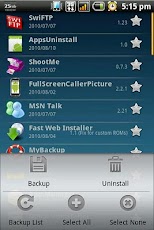
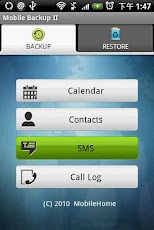
  • MyBackup Pro (30 day trial version): Similar to Titanium Backup, has many features which work unrooted. Can backup apps apk, contacts, call log, sms, mms, bookmarks etc. Worth checking.


  • App Backup & Restore (Free): Performs a single function which is to backup apk files. Has a dangerous permission requirement of Read Sensitive Log Data. So, if you are worried, install only when required.

  • App Backup & Reinstall: Another app to backup apk files. Some users have reported in the market that the backups got corrupted, so be careful.


V. Using Android Debug Bridge (ADB)
copkay at XDA, has found out a great way to backup almost everything without having root access. This is useful when, for ex, you want to root which could wipe the entire data.

If you do not have ADB installed check this post: ADB Installation Guide.

Backup
Here are the steps to follow:
1. Connect your device via USB, and open a command prompt (In Windows Go to run and type cmd, press enter)

2. Type the command 'adb devices' to ensure that your device is properly recognized. There will be an alphanumeric string indicating the device has been identified. If the device is not identified, DO NOT proceed, rather troubleshoot why that is so.

3. We will use the ADB command backup. Here is the format

adb backup [-f <file>] [-apk|-noapk] [-shared|-noshared] [-all] [-system|nosystem] [<packages...>]

If you want to do a full backup simple enter:
adb backup -apk -all -f C:\backup_02292012.ab

Parameters discussion:
  • [-f <file>] — Backup to a particular file, always use this so you know where your backup is
  • [-apk|-noapk] — backup applications apk (installation files) or not. default is no apk
  • [-shared|-noshared] — backup shared data like pictures, does not work very well, so even if you do use this, please do a separate backup for your personal data, as mentioned before
  • [-all] — backup all apps, unless you want to manually backup each app
  • [-system|-nosystem] — Whether or not to backup system apps, I do not recommend backing system apps
  • <packages...> — If you want to backup specific apps

When you are ready, enter the command in the command prompt on Windows. Once you do that, adb will send the instruction to your device and you will see a prompt. Select a password if you wish and then proceed. if you do select a password, do not forget or else the backup will be useless.

After this wait for several minutes depending upon the size of the back up to be done. Once it's completed, you will get a prompt on your device indicating the process has been completed.

Restore
To restore use the following command in command prompt:
adb restore C:\backup_02292012.ab

Simply follow the onscreen prompts on the device and wait for the process to complete. Congrats you have just done a complete restore.


IMP: This method does not work 100% correctly, so not everything will be restored, especially files in /data/media (sdcard folder), so do that manually. Also does not backup sms.

VI. Conclusion
Hopefully this post has helped you in identifying how to and what to backup on your unrooted Android devices. Especially the full backup using ADB is very powerful in case one is rooting or doing a factory reset or sending the device to Motorola for repairs.

If you know of other good apps let us know!

Please note: I take no responsibility if you mess anything, delete your personal data or even brick your device. If you are not comfortable with anything do not proceed, especially when using ADB.

 Previous coverage under Android for All, our special education and informative primers on Android, include Android Permissions Black Book, Syncing MTP devices (like Android based devices) with Windows, Reverse tethering on your Android: Use Windows Internet connection on your Android! and ADB Installation Guide.


Baca Selengkapnya ....
Trik SEO Terbaru support Online Shop Baju Wanita - Original design by Bamz | Copyright of samsung galaxy s2.